
Getting Started
All plansMagicBill lets you create professional invoices and send them to clients in minutes — no accounting knowledge needed. Here's how to get set up quickly.
Create your account
Sign up at magicbill.co.uk with your email. No credit card needed — the Free plan is yours immediately.
Build your first invoice
Click 'New Invoice' from the dashboard or the Invoices page, then fill in the 5-step guided builder.
Download or send
Download a polished PDF or send it directly to your client by email — all from within MagicBill.
Dashboard
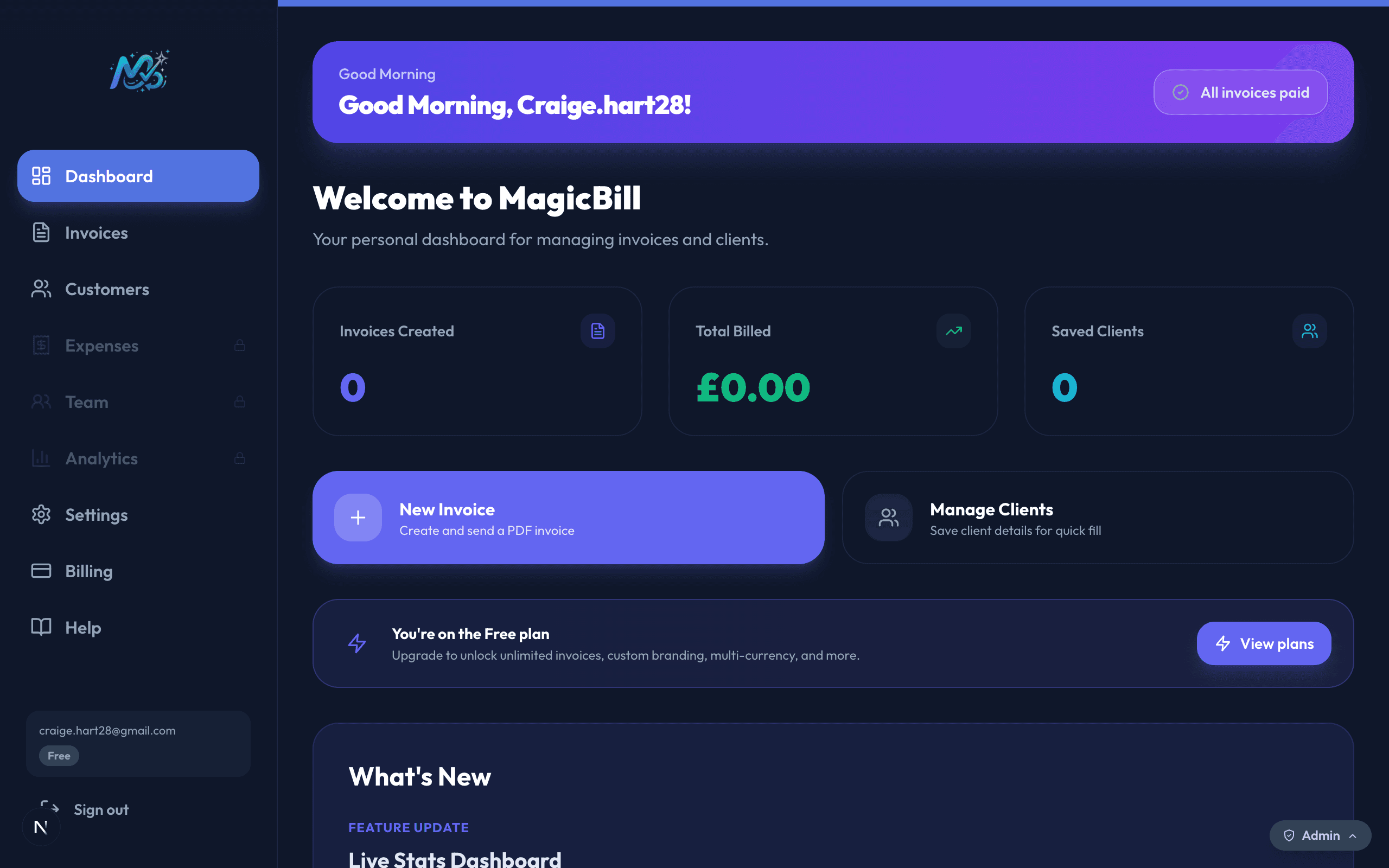
All plansThe dashboard is your home base. It gives you a live snapshot of your billing activity and quick access to the most common actions.
Stats overview
See your total amount invoiced, number of unpaid invoices, and total saved clients — all updated in real time.
Quick actions
Use the prominent 'New Invoice' button to jump straight into the invoice builder without navigating to the Invoices page.
Invoices
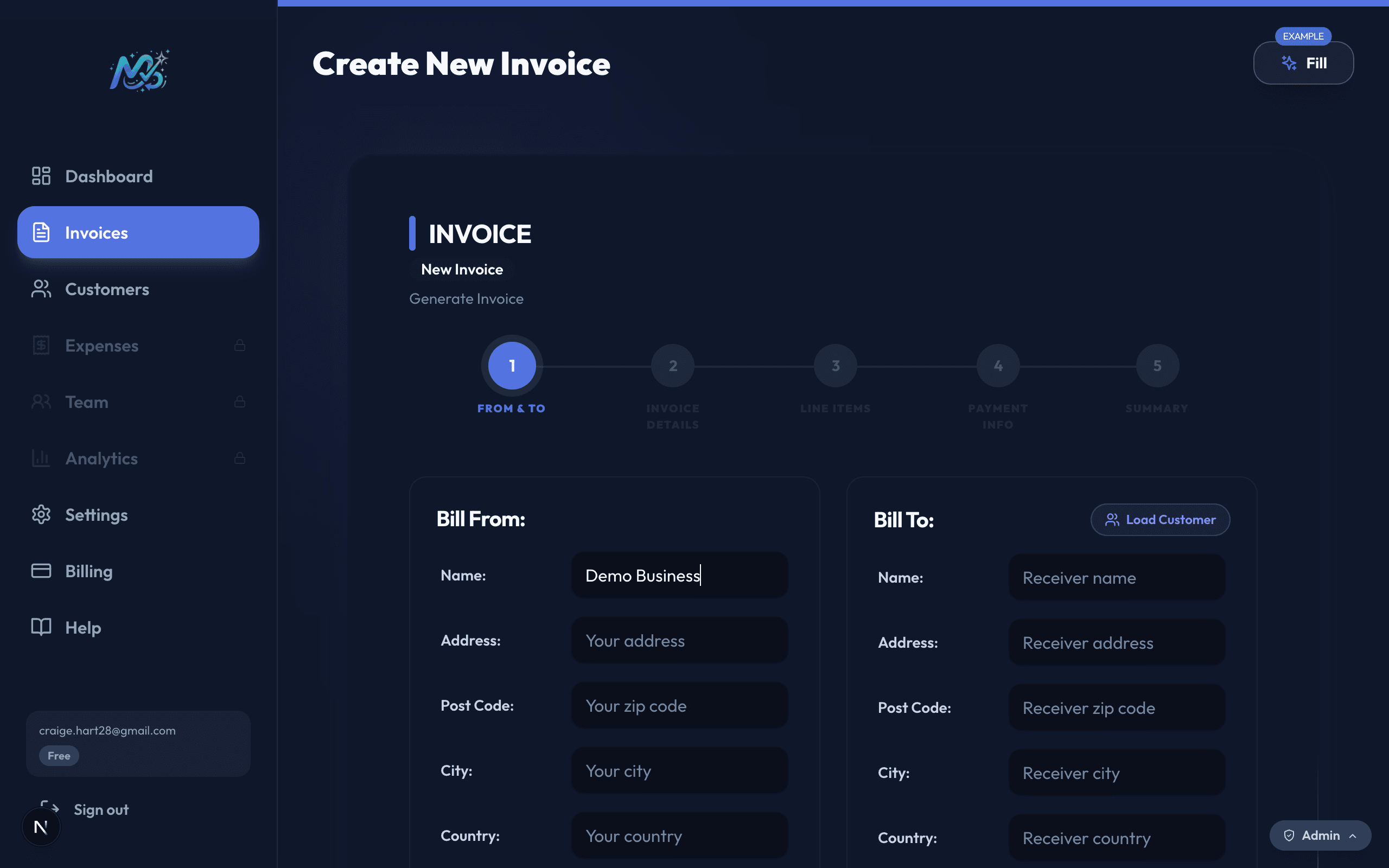
All plansThe heart of MagicBill. Create, manage, send, and track invoices from one place. The invoice builder walks you through 5 simple steps to produce a professional PDF.
Creating an invoice
From & To
Enter your business details and your client's details. Use a saved client to auto-fill the form instantly.
Invoice details
Set the invoice number, issue date, due date, and choose a PDF template and currency.
Line items
Add services or products with descriptions, quantities, and unit prices. Tax rates are applied per line.
Payment info
Add your bank account details, payment instructions, or any notes you want to appear on the invoice.
Summary & export
Review the live PDF preview, then download it or send it straight to your client's email address.
Managing invoices
Mark as paid / unpaid
Open any invoice from the list and toggle its status. Paid invoices move to the 'Paid' tab automatically.
Resend by email
Resend an existing invoice PDF to your client from the invoice detail view — no need to rebuild it.
Edit an invoice
Open any invoice and tap Edit to re-open the builder with all fields pre-filled. Download the updated PDF when done.
Customers
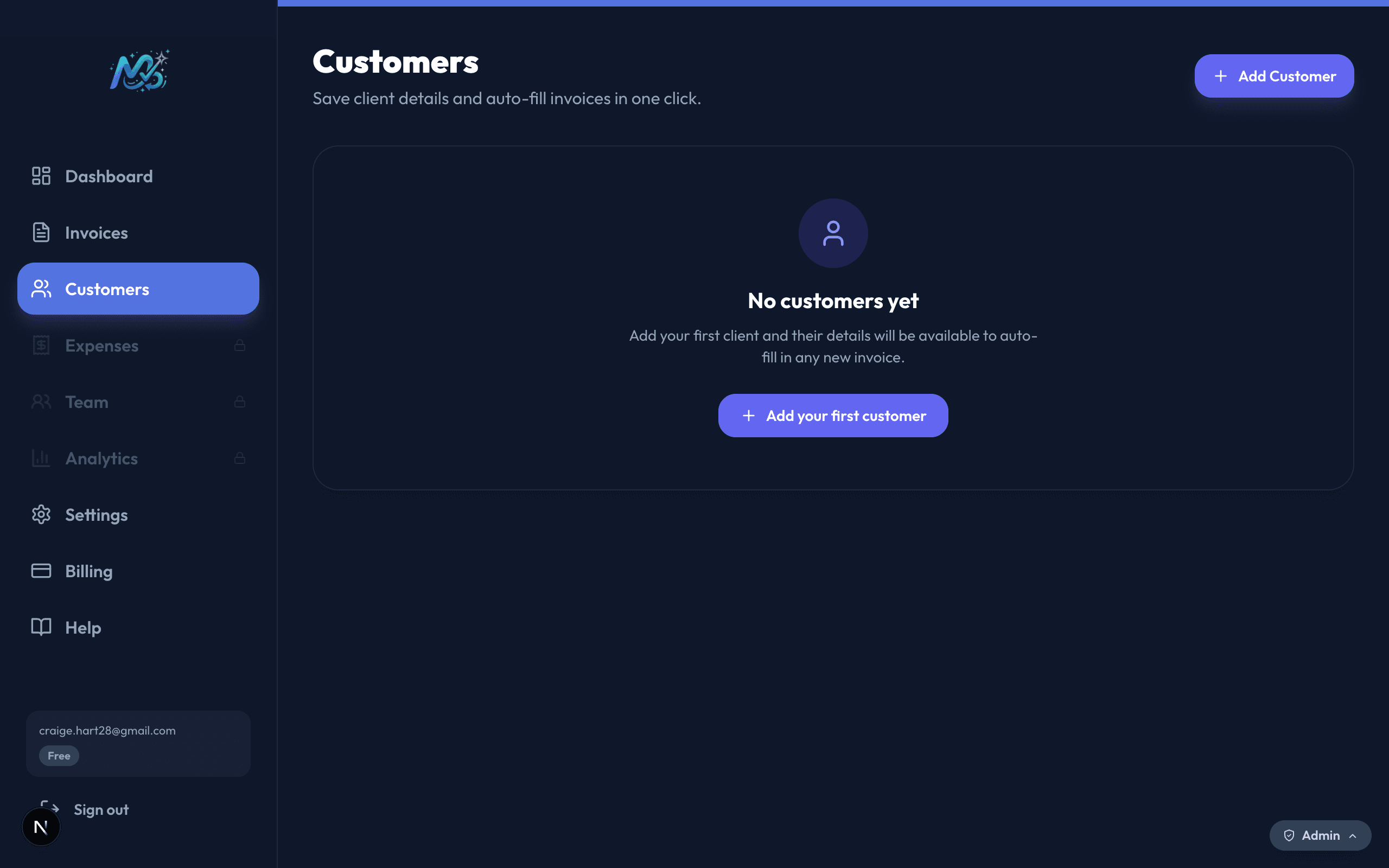
All plansSave your clients' details once and reuse them on every invoice — no more retyping names and addresses.
Add a customer
Go to the Customers page and click 'Add Customer'. Fill in their name, email, address, and any other details.
Use on an invoice
In the invoice builder's 'From & To' step, select a saved customer from the dropdown to auto-fill their details instantly.
Settings & Branding
All plansPersonalise MagicBill to match your business. Professional and Business plan users can apply custom branding directly to every invoice PDF.
Brand Identity Professional+
Logo
Upload your business logo (PNG or JPG). It appears in the top-left corner of every new invoice PDF.
Signature
Draw or upload a signature image. It's placed at the bottom of invoice PDFs to give them a professional, signed look.
Brand colour & font
Pick your brand colour and choose from several professional fonts. These are applied to invoice headers and accents.
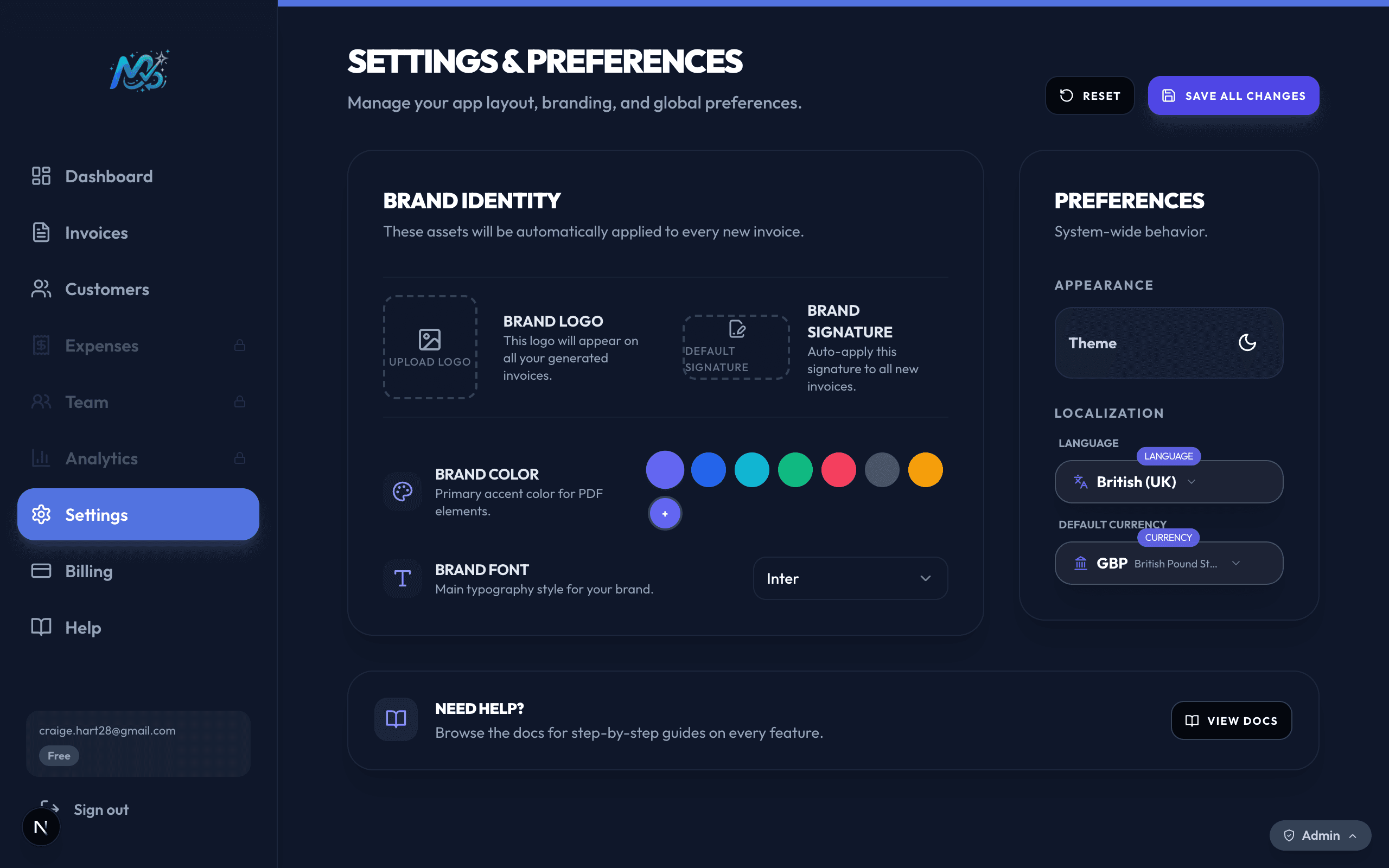
Preferences
Theme
Switch between light and dark mode. The setting applies across the entire dashboard immediately.
Language
Choose your dashboard language from 15 supported languages (Professional+ plans).
Default currency
Set a default currency so the invoice builder pre-selects it every time. You can still change it per invoice.
Plans & Billing
All plansMagicBill offers three plans. You can upgrade, downgrade, or cancel at any time from the Billing page.
| Feature | Free | Professional | Business |
|---|---|---|---|
| Invoices / month | 3 | Unlimited | Unlimited |
| Saved clients | 5 | Unlimited | Unlimited |
| PDF templates | 1 | All | All |
| Multi-currency | — | ✓ | ✓ |
| 15 languages | — | ✓ | ✓ |
| Custom branding | — | ✓ | ✓ |
| Expense tracking | — | — | ✓ |
| Team access | — | — | Up to 3 |
| Analytics / P&L | — | — | ✓ |
How to upgrade
Go to Billing
Click 'Billing' in the dashboard sidebar.
Choose a plan
Select Professional or Business and pick monthly or annual billing. Annual saves the equivalent of 2 months.
Checkout securely
Complete payment via Stripe. Your plan upgrades instantly and new features unlock immediately.
Business Features
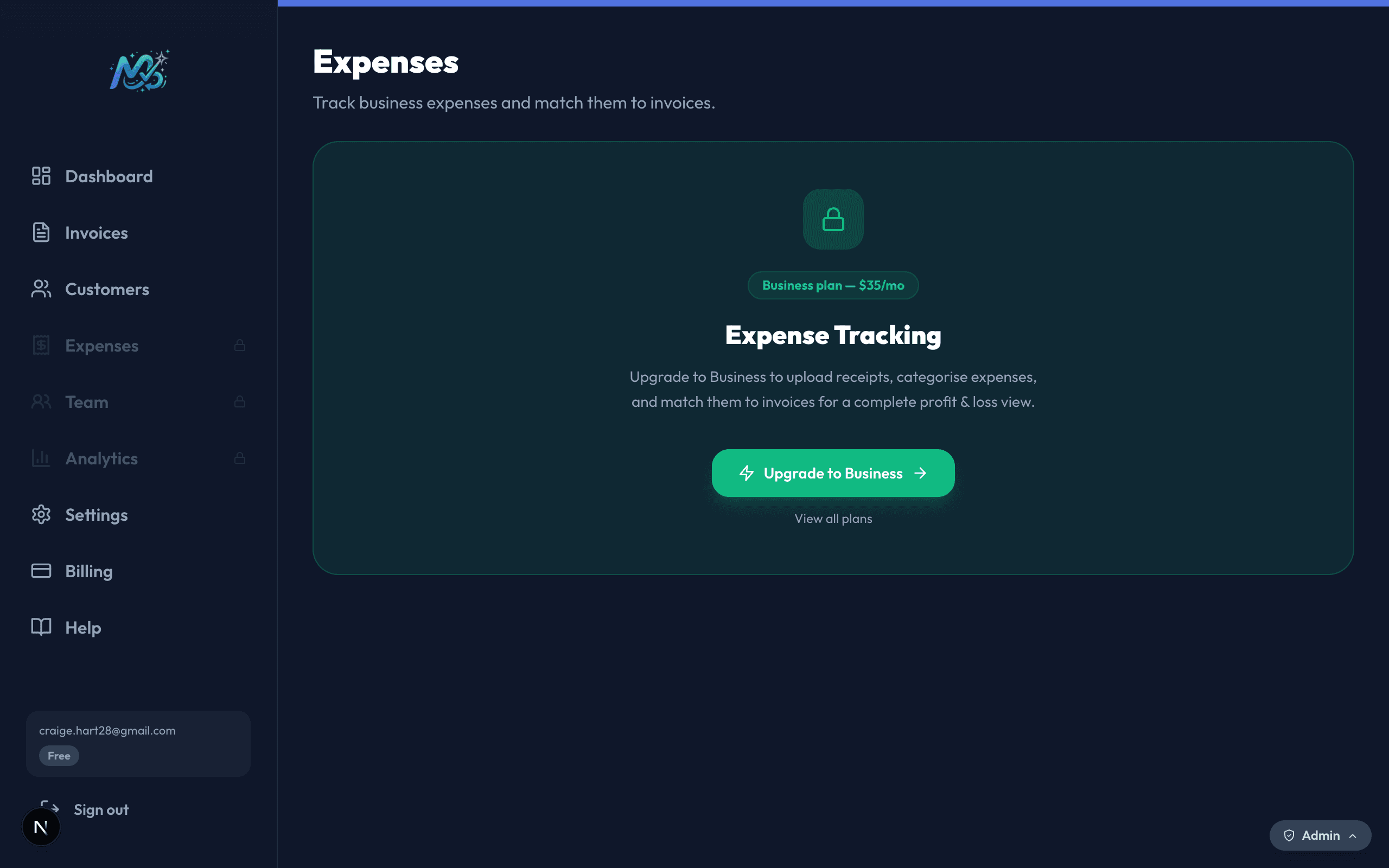
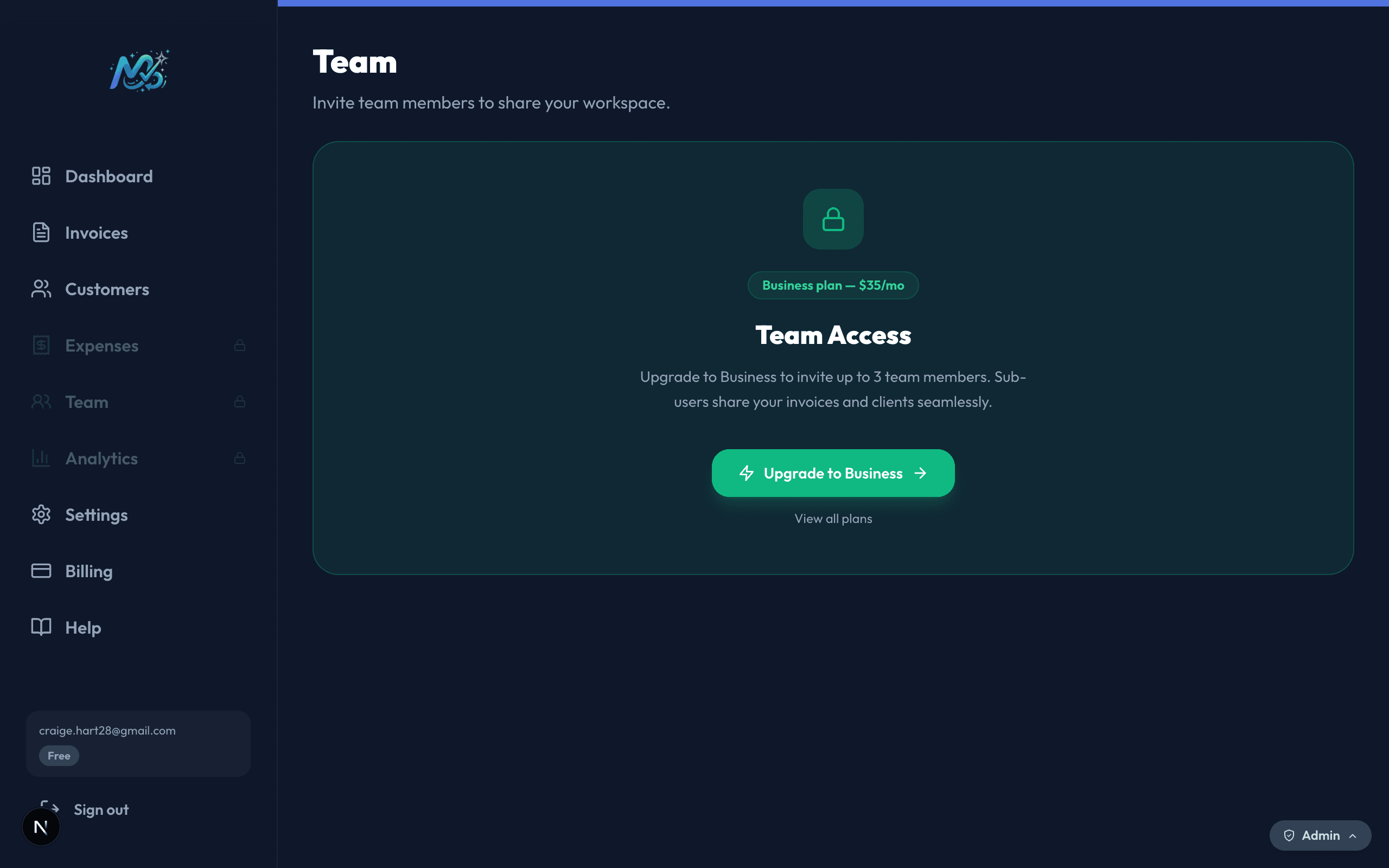
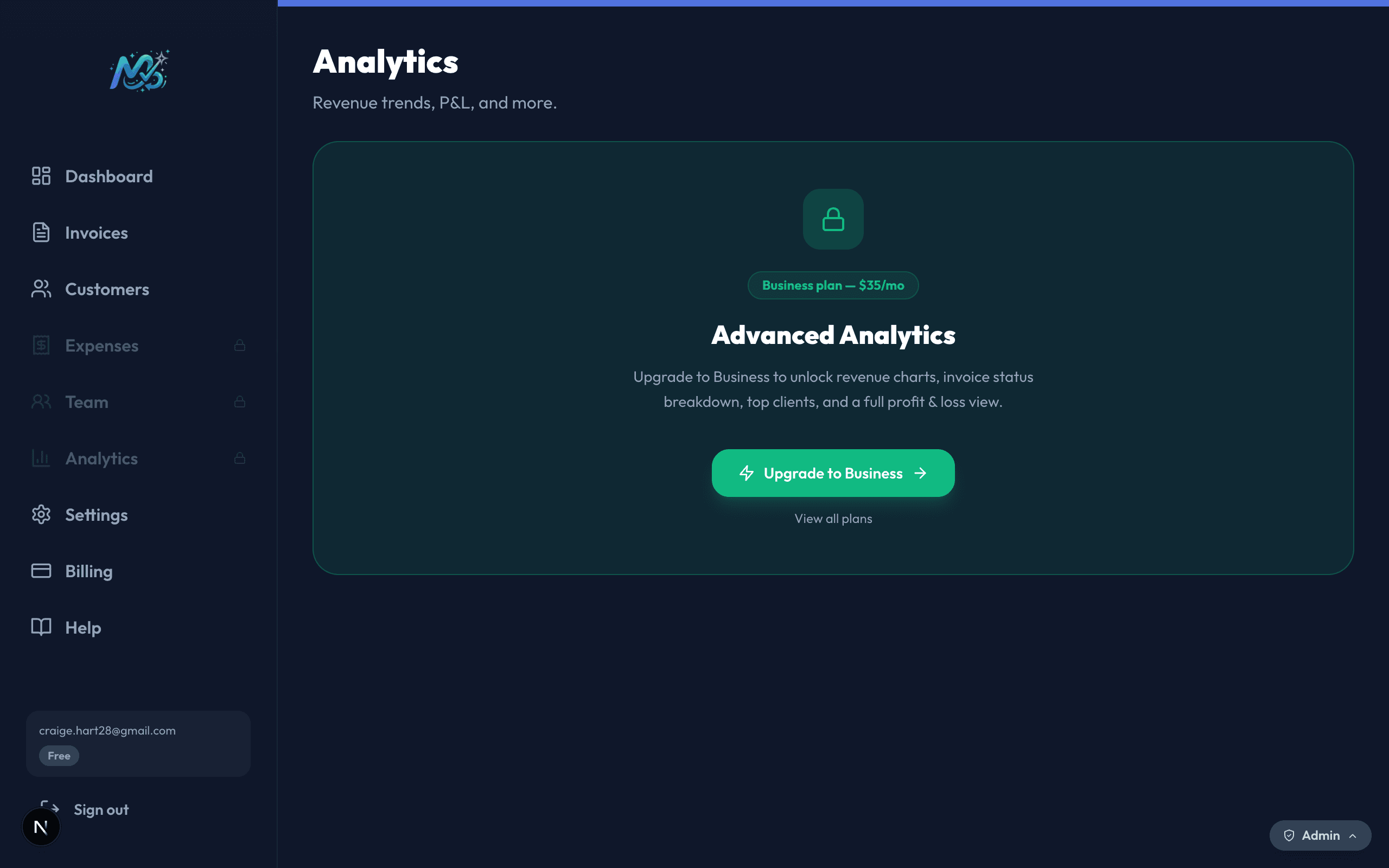
BusinessThe Business plan unlocks three powerful extras: expense tracking, team collaboration, and financial analytics.
Expenses
Log an expense
Go to the Expenses page and add a new expense with a category, amount, date, and optional receipt upload.
Track spending
All expenses feed into the Analytics page so you can see your profit & loss at a glance.
Team
Invite a team member
Go to Team → Invite. Enter their email address and they'll receive an invite link to join your workspace.
Manage access
Business plans support up to 3 team members. Remove or reinvite members from the Team page at any time.
Analytics
Revenue trends
See monthly revenue charted over time so you can spot seasonal patterns and growth.
Profit & Loss
Revenue minus expenses gives you a real-time P&L view — no spreadsheet required.
Can't find what you need?
← Back to home